Music
Teaching/Talk
Español
Ministry
Podcasts
Newsletters
Register
|
Sign In
Tell Everybody Now
"Tell Everybody Now", Christian angle on news and politics with Peter Timothy Cooper.
Your browser does not support the audio tag.
Christian Music Radio Stations Near You
Choose Another City
Tell Everybody Now
"Tell Everybody Now", Christian angle on news and politics wit...
WiGRadio
Reaching the world with Good News!
Grok Radio
Christian Music and Programming
Stream Christian Music
Singing News Radio
Nashville, TN - Southern Gospel Music
Now Playing :
The Blood Of Jesus by The Erwins
Today's Christian Music
A refreshing blend of music that's Safe for the Whole Family
Now Playing :
Washed By The Water by Needtobreathe
Fish Praise
Fish Praise Web Radio
Now Playing :
No Longer Slaves by Bethel Music
Radio Luz Boston
Boston, MA - Spanish Language Teaching and Talk - Radio Luz
Now Playing :
Radio Luz Miami
Miami, FL - Spanish Language Teaching and Talk - Radio Luz
Now Playing :
Browse all Christian Radio Stations
Enduring Word Radio
100.7 FM The Word
101.5 FM WORD
102.7 FM KBIQ
103.9 The FISH Sacramento
104.1 FM KFIS The Fish
104.7 FM WFSH
105.1 FM WAVA-FM
1100 AM KFAX
1220 AM The Word
1360 AM KPXQ
1650 AM KBJD
560 AM WFIL
570 AM WMCA The Mission New York City
590 AM The Word
590 AM WDWD
710AM 105.7FM The Word
760 AM WLCC
780 AM WAVA-AM
800 AM KPDQ-AM
820 AM The Word
88.3 KLMP The Light
900 AM WFIA-AM
93.3 FM KKSP
93.9 FM KPDQ-FM
94.7 FM The Word
94.9 FM KLTY
95.5 FM WFHM
95.9 FM KFSH
950 AM WROL
97.9 The Point
970 AM WNIV
97X / WIXL
98.3 FM The Word
980 AM KKMS
99.5 FM KGU
99.5 FM KKLA
990 AM WDYZ
AM 1160 Hope For Your Life
AM 1430 The King
AM 630 The Word
AM 990 - FM 101.5 The WORD
Anchor Radio
Christian FM
Christian Hip Hop Radio
Christian Hits K-True
Christian Music Radio
Classic CCM
FaithTalk 99.5 FM
FaithTalk Detroit WLQV
FaithTalk Tampa
Fish Praise
FM 105.5 The King
Freedom Radio FM
Grok Radio
Higher Rock Radio
Impacto Stereo
K-Book
KDKQ - ALIVE 105
KELB 100.5 Eternal Life Radio
K-Praise FM 106.1 AM 1210
Launch Radio FM
LifeTalk Radio
LZMRADIOMIAMI
Northeast Iowa Christian Radio
Pittsburgh's Power 1360
Positively Different 107.5 Alive.fm (WBYN-FM)
Power 107.1 KSLT
Power 107.1 KSLT
Power 107.1 KSLT
Pro Star Radio
Radio By Grace
Radio Luz Boston
Radio Luz Dallas
Radio Luz Miami
Radio Tabernacle Haiti
Rejoice 105.5
Singing News Radio
Tell Everybody Now
The Eric Metaxas Show
The Fish.Com
The New 95.9 The Fish
The Word 100.7 FM
The Word 880 AM 104.5 FM
The Word FM 100.7
TheFishDetroit.com
Today's Christian Music
WCRH, The Compass
WiGRadio
WLUJ
WPIT Radio
WSHO Sonshine 800
WTIJ 100.7 FM
Christian Ministry Podcasts
Handling Anxiety God’s Way
Focus on the Family with Jim Daly
Don’t Rob God
Pastor Robert Morris Ministries with Pastor Robert Morris
The Sounding of the Seventh Trumpet, Part 2
Insight for Living with Chuck Swindoll
"Billy Graham: The Man I Knew, Pt.2" with Pastor Greg Laurie and Dr. Tim...
Life, Love, Faith and Family with Dr. Tim Clinton and Zach Clinton
Unveiling the Mysteries of Secret Societies and the Georgia Guidestones ...
The Counter Culture Mom Show with Tina Griffin
Browse all Christian Ministries
1 Minute Devotional from Mike Fabarez
30 day Prayer Challenge from Jack Graham
4word Women
5 Minutes With Pastor Lutzer
A Daily Walk
A Moment with Michelle
A New Beginning
A Visit with the Joneses
Abounding Grace
Abre la Biblia
Adventures in Odyssey
All Things Are Possible
Alliance of Confessing Evangelicals
Ankerberg Minute
Ankerberg Show
Answers with Ken Ham
Ask Pastor Mike Fabarez
Atlanta Bible Baptist Church
Awakened to Grace
Bayside Baptist Church
Bible Answers Live
Brinkman Adventures
Capitol Ministries Weekend
Changing Worldviews
Christian Crusaders
Connect
Countdown 2 Eternity
Crazy Little Thing Called Marriage
Creation Moments
Destined for Victory
Discovering The Jewish Jesus
Dr. Barnhouse and the Bible
Dr. Dobson Minute
Dwelling Place
Encounter the Truth
Enfoque Mesiánico
Esperanza Diaria
Every Last Word
Every Man’s Battle Podcast
Faithful 31 Moms
FaithWalk Radio
Family Talk
Family Talk Weekends
FamilyLife Blended®
FamilyLife Today®
Fellowship in the Word
Fight For Your Marriage Podcast
First Baptist Church of Highland Park
Focal Point
Focus on Israel
Focus on the Family
Focus on the Family Marriage Podcast
Focus on the Family Parenting Podcast
Focus on the Family's Radio Theatre
From His Heart
From the MLJ Archive
Generations Radio
Glad News for Muslims
God Centered Life
God's Great Outdoors
Gospel in Life
Grace Thoughts
Grace to You
Grace to You Weekend
Greater Shiloh Missionary Baptist Church
Guidelines For Living
Holy Scriptures and Israel
Hope From the Word
Hope Ministry
HopeLives365
In Touch Ministries
Insight for Living
Insights on Marriage and Divorce
Inspire
International Gospel Hour
Joni Eareckson Tada: Sharing Hope
Key Life Network
Leading The Way
Leading The Way Dual-Language Radio
Liberty Bible Fellowship Church
LIFE Today
Life, Love, Faith and Family
Light on the Hill
Living on the Edge
Living With Victory
Love Israel
Love Worth Finding
Married With Benefits by FamilyLife
Messianic Perspectives
Messianic Viewpoint
Momentos de la Creación
Moments of Music
Moody Church Hour
New Life Live!
No Porn Marriage
One For Israel
Open the Bible
Open the Bible Minute
Parent Compass Radio
Pastor Rick's Daily Hope
Pastor Robert Morris Ministries
Pastors' Chats
Pathway to Victory
Pautas Para Vivir
Paws & Tales
Plugged In Entertainment Reviews
Portraits of Grace
Power Walk Ministries
PowerPoint
Practical Living
Proclaiming Justice with Laurie Cardoza Moore
Real FamilyLife®
Real Life Loading...
Real Life Radio
ReFOCUS with Jim Daly
Reframing Ministries
Regaining Lost Ground
Reset
Revive Our Hearts
Richard Ellis Talks
Running To Win
Running To Win 15 Minute Version
San Clemente Presbyterian Church
Save America Ministries
SEKULOW
SermonIndex Classics - A.W. Tozer
SermonIndex Classics - Leonard Ravenhill
SermonIndex Classics - T. Austin Sparks
Simple Faith
Simply for Women
Somebody Loves You
Sound Doctrine
Sound of Faith
Spurgeon Sermons
Steve Brown, Etc.
Study the Word
Summit Life
Teen Suicide: Knowing the Signs
Telling the Truth
Telling the Truth for Women
The Alternative
The Bible Study Hour
The Boundless Show
The Christian Outlook
The Christian Worldview
The Christians Hour
The Counter Culture Mom Show
The Future of America
The Grace Message
The Healing Word
The Last Chance Detectives
The Narrow Path
The Official Adventures in Odyssey Podcast
The Official Average Boy Podcast
The Plugged In Show
The Wondrous Story
The Word Made Plain
Through the Bible for Skeptics, Seekers, and Disciples
Through The Hymnbook
Thru the Bible
Thru the Bible - Questions & Answers
Thru the Bible - Sunday Sermon
Thru the Bible - Minute with McGee
Thru the Bible International
Truth For Life
Truth That Changes Lives
Turning Point
Understanding the Times
Unlimited Grace
UNPACKIN' it-Sports Fans Following Jesus
UpWords with Max Lucado
Useful To God
Watchman on the Wall
Watchman Radio Hour
Welcome Home
You Think About That
Your Story Hour


 Singing News Radio Nashville, TN - Southern Gospel Music
 Today's Christian Music A refreshing blend of music that's Safe for the Whole Family
 Fish Praise Fish Praise Web Radio
 Radio Luz Boston Boston, MA - Spanish Language Teaching and Talk - Radio Luz
 Radio Luz Miami Miami, FL - Spanish Language Teaching and Talk - Radio Luz
 Handling Anxiety God’s Way Focus on the Family with Jim Daly
 Don’t Rob God Pastor Robert Morris Ministries with Pastor Robert Morris
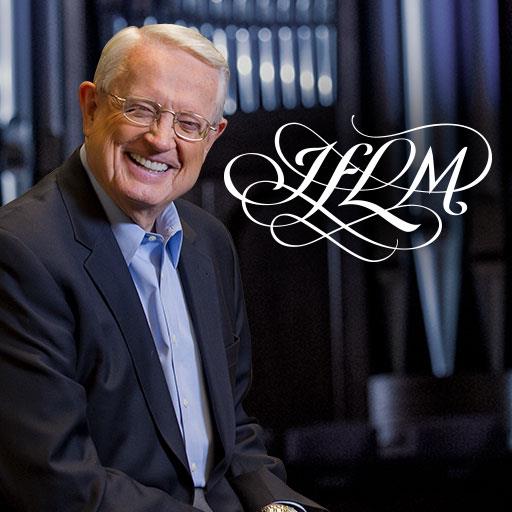 The Sounding of the Seventh Trumpet, Part 2 Insight for Living with Chuck Swindoll
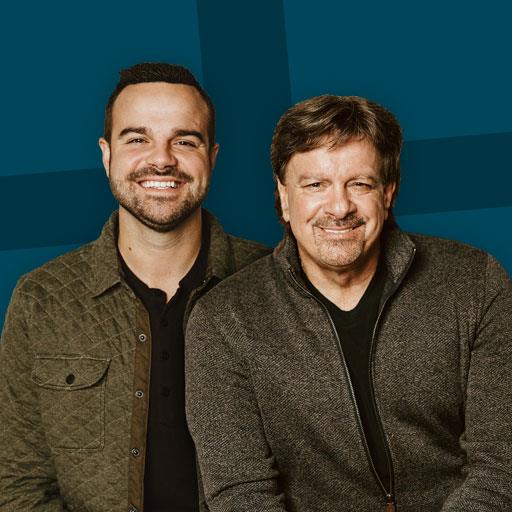 "Billy Graham: The Man I Knew, Pt.2" with Pastor Greg Laurie and Dr. Tim... Life, Love, Faith and Family with Dr. Tim Clinton and Zach Clinton
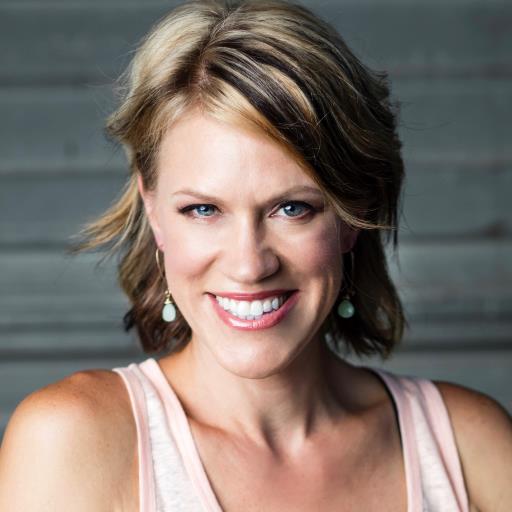 Unveiling the Mysteries of Secret Societies and the Georgia Guidestones ... The Counter Culture Mom Show with Tina Griffin